PEPEX DUNGEONHomeРусское руководствоPlay
PEPEX DUNGEON / PLAYER GUIDE

How to play PepeX Dungeon

Start in the city. Prepare your hero, explore the dungeon, review your loot and put resources into your next upgrade.

Guide updated on 4 November 2026. Screenshots and videos feature demonstration heroes recorded on 31 October and 2 November; some visual details may differ.

Your first five minutes

  1. Open the website game, Telegram, VK or the app. To continue an existing hero, use an account that is already linked.
  2. From the city, open your inventory. Look at your equipped items and compare any available replacements.
  3. Check quests and available upgrades, then enter the dungeon and learn movement on the first floor.
  4. After the run, return to the city. Review loot, production and resources before choosing your next action.

A new guest account and a linked platform hero may be different accounts. Make sure the correct hero is loaded before developing it.

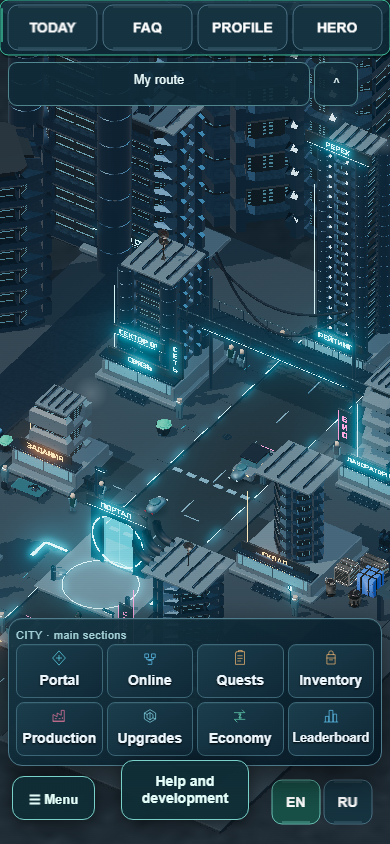
The city: finding your next action

  1. City buildings and categories open game systems, including the economy, production and character progression.
  2. Inside a room, use Back to return to the previous screen or To city to return to the map.
  3. A numbered marker points to something worth checking in its section. The marker does not buy or start anything by itself.
  4. Use the ? button in a room when a machine, slot or action is unfamiliar.
The city: finding your next action
In-game example, 2 November 2026
Open full-size screenshot

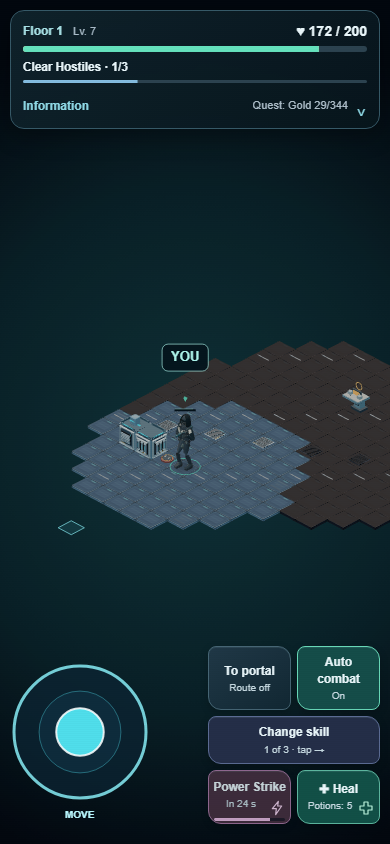
The dungeon: movement, combat and leaving

  1. On a phone, move the circular joystick in the direction you want to travel. On a computer, check the controls shown in the game.
  2. Watch your health and floor objective at the top of the screen. Explore the revealed area and its available targets.
  3. Auto-battle and the portal route are separate switches. Skills and healing have their own conditions and cooldowns.
  4. Opening inventory is not intended to end the run. Use the dungeon’s own actions to leave or move on.

Finish your current actions and return to the city before restarting or updating. An update is not a way to finish combat automatically.

The dungeon: movement, combat and leaving
In-game example, 31 October 2026
Open full-size screenshot

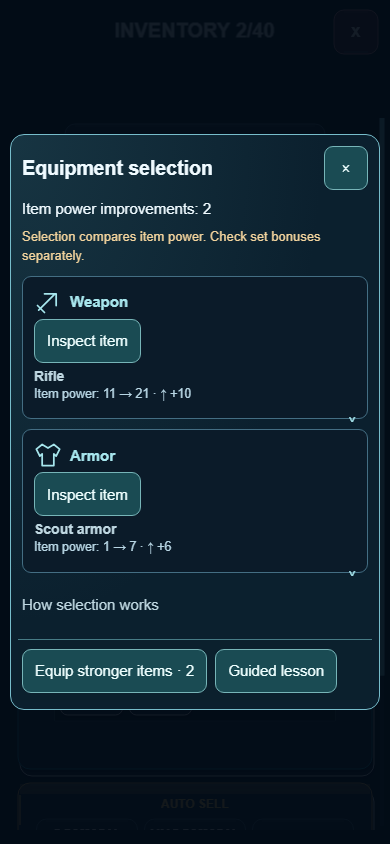
Inventory: inspect and equip items

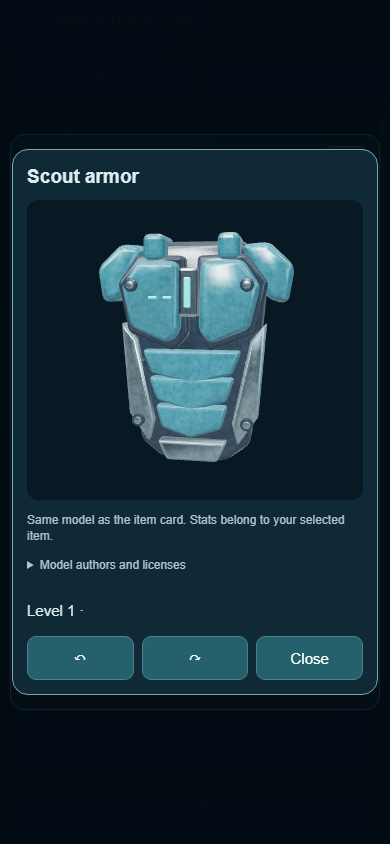
  1. Select an item in inventory to see its properties and available actions.
  2. Compare characteristics and the correct equipment slot. An item may provide several useful effects.
  3. Equipment selection shows proposed replacements before applying them. Review the list before confirming.
  4. Selection compares item power. Check set bonuses separately, and review selling or other irreversible actions carefully.
Inventory: inspect and equip items
In-game example, 2 November 2026
Open full-size screenshot

Equipment crafting and sets

  1. Open equipment production and choose a recipe. Check the materials and requirements.
  2. The Affordable filter keeps recipes you can afford with current resources. Turning the filter on does not craft or spend anything.
  3. Selecting a recipe opens its preview. Check the cost before confirming production.
  4. Collect the finished item after its queue completes. For sets, check the required pieces, total resource cost and available assembly actions.

A recipe being visible does not mean it is already being crafted. Use the queue and the confirmed item state to check progress.

Equipment crafting and sets
In-game example, 2 November 2026
Open full-size screenshot

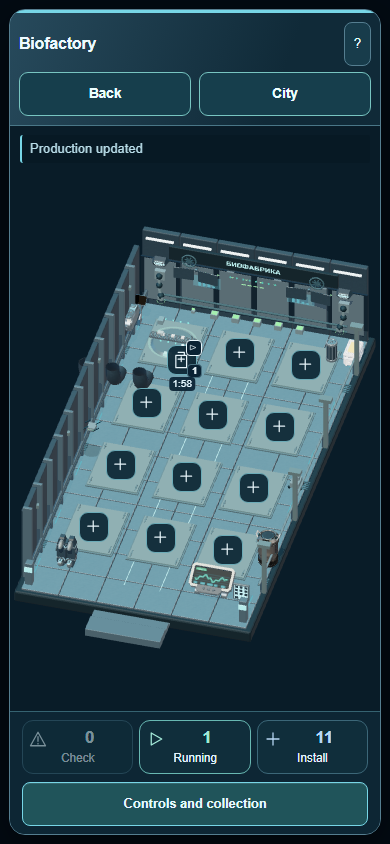
Production rooms and machines

  1. Look at occupied slots and free + slots in a production room. Select a slot to inspect installation options.
  2. Check the resources and requirements before installing or upgrading a machine.
  3. Animated mechanisms help show activity. Read the timer and result for a specific slot or open management.
  4. Management and collection opens the available actions. Collect completed output, then choose what to run next.
Production rooms and machines
In-game example, 2 November 2026
Open full-size screenshot

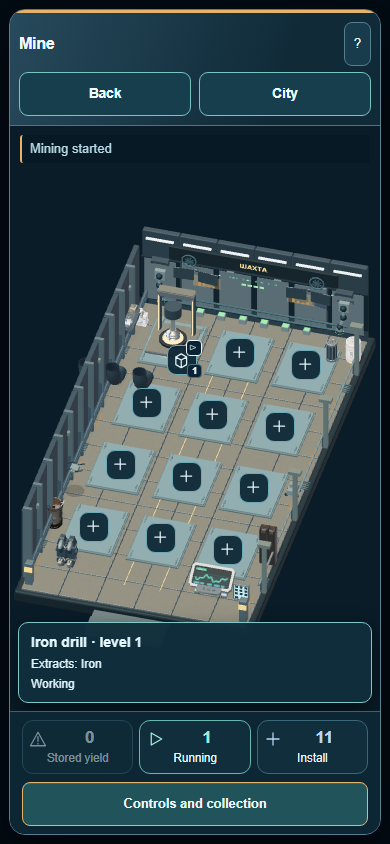
Mining: turn an installation into resources

  1. Open the mine or another available extraction system and select an installation slot.
  2. Check its cost and requirements before confirming the option you want.
  3. Check the machine’s state and whether its output is ready to collect.
  4. Use crafting recipes to guide your choices: identify a missing material, then develop the relevant source.
Mining: turn an installation into resources
In-game example, 2 November 2026
Open full-size screenshot

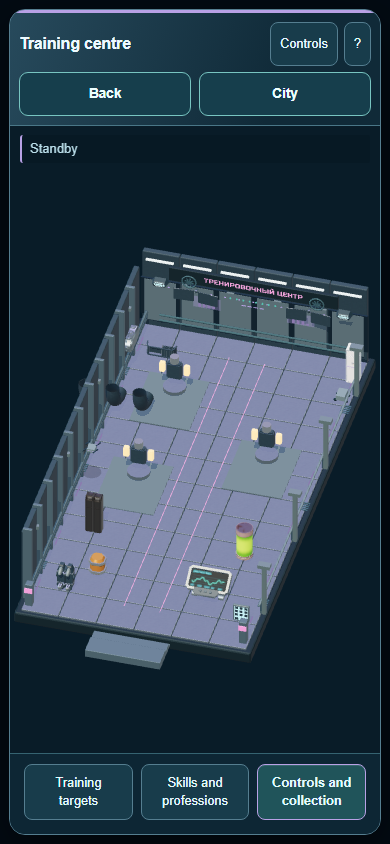
Hero upgrades, skills and professions

  1. Open Upgrades and choose a progression system. Read the effect of the particular improvement.
  2. In training and skill menus, compare cost with the result instead of buying every available upgrade.
  3. Professions and production progression affect their own systems. Check the requirements of each improvement.
  4. Use quests to choose a nearby goal. Claim rewards through the intended action once the conditions are met.
Hero upgrades, skills and professions
In-game example, 2 November 2026
Open full-size screenshot

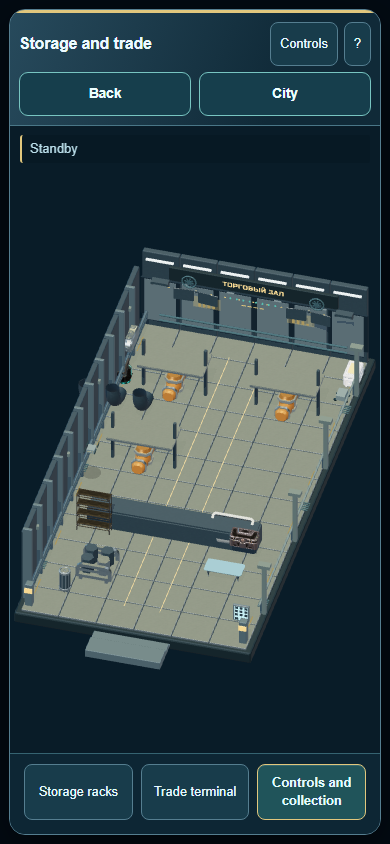
The economy, trade and resource choices

  1. Open Economy and select an available system, such as offers, production or rentals.
  2. Before confirming a trade, check the item, quantity and price. Availability depends on your current account state.
  3. Compare spending with the alternatives: extract a material, craft an item or save a resource for an upgrade.
  4. Do not share sign-in data for trading. Use the game interface for game actions.
The economy, trade and resource choices
In-game example, 2 November 2026
Open full-size screenshot

Continue the same hero across platforms

  1. Use the supported linking and approval flow to continue a Telegram or VK hero on the website or in the APK.
  2. Follow the sign-in screen. A short linking code and a long guest recovery key have different purposes.
  3. When moving to another device, check the loaded hero’s name, level and inventory. If they are wrong, check the sign-in method.
  4. If another game window is active, choose where you want to continue. Do not approve moving your session to an unfamiliar window.

Store your personal recovery key somewhere safe. It is not needed for ordinary support conversations or messages to other players.

Graphics, sound and your phone display

  1. Start with automatic graphics quality. If the image is not sharp enough and your device can handle it, try a higher quality setting.
  2. If the phone gets hot or movement stutters, reduce quality and extra effects. Music and sound effects have separate settings.
  3. Use portrait mode on a phone. Close the keyboard if it reduces the available game area.
  4. If the display looks wrong after returning, check settings and app updates. When reporting a problem, include your platform, phone model and Android version.

Getting updates

  1. The website, VK, Telegram and itch.io receive the game client from the server or platform. You do not need a new APK for every graphics update.
  2. The main Android app offers shell updates inside the app. To check immediately, return to the city, close open panels, press Android Back and choose Updates.
  3. Choose Download, then Install after verification. Confirm installation in Android and allow updates from PepeX if prompted. Keep the old app installed.
  4. On Windows, use the update area in the main app window: Check, Download in background, then Update and restart. There is no need to restart automatically during play.

Finish your current actions and return to the city before accepting a restart. Losing connectivity should not require creating a new hero.

Watch the game in action

See the city, rooms, inventory and dungeon. Videos load and play when you choose to watch.
City and dungeon walkthrough

In-game example, 31 October 2026